Alright, as announced, here some example:
If you just use a custom view, you have to keep lists of objects and draw them yourself, as opposed to a custom layout where you just have to measure and layout the children. Since you can just add a button, there's no need to use hit-tests or whatsoever, since if you don't mess up the view will just receive the onClick() call.
Also, you can easily preview your layout in the editor if you correctly implement layout parameters. Which makes development much faster.
E.g. you can define your own layout parameters
<resources>
    <declare-styleable name="TimeLineLayout_Layout">
        <attr name="time_from" format="string"/>
        <attr name="time_to" format="string"/>
    </declare-styleable>
</resources>
Then use them like this...
<com.github.bleeding182.timelinelayout.TimeLineLayout
    android:layout_width="match_parent"
    android:layout_height="wrap_content"
    android:background="#22662222">

    <TextView
        android:layout_width="80dp"
        android:layout_height="wrap_content"
        android:background="@android:color/holo_green_dark"
        android:padding="8dp"
        android:text="12:00 - 16:00"
        app:time_from="12:00"
        app:time_to="16:00"/>

</com.github.bleeding182.timelinelayout.TimeLineLayout>
And the result would look something like this (I know it's ugly, but I made this just for testing :/ )
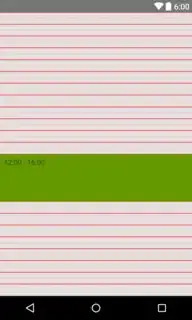
To do this, you create a basic layout where you measure and layout the views. You can then add any views to your layout, and by setting a time from / to and correctly measuring / layouting you can easily display all sorts of items.
The code for the screenshot is attached below, onDraw will create those ugly hour/half hour lines. onMeasure is for calculating view heights and onLayout is drawing the views to their correct time slot.
I hope this helps, it's sure easier to use than handling everything in one view.
public class TimeLineLayout extends ViewGroup {

    private int tIntervalSpan = 24 * 60;
    private float mMeasuredMinuteHeight;

    public TimeLineLayout(Context context) {
        super(context);
    }

    public TimeLineLayout(Context context, AttributeSet attrs) {
        super(context, attrs);
    }

    public TimeLineLayout(Context context, AttributeSet attrs, int defStyleAttr) {
        super(context, attrs, defStyleAttr);
    }

    @TargetApi(Build.VERSION_CODES.LOLLIPOP)
    public TimeLineLayout(Context context, AttributeSet attrs, int defStyleAttr, int defStyleRes) {
        super(context, attrs, defStyleAttr, defStyleRes);
    }

    @Override
    protected void onLayout(boolean changed, int l, int t, int r, int b) {
        for (int i = 0; i < getChildCount(); i++) {
            final View child = getChildAt(i);
            ViewGroup.LayoutParams layoutParams = child.getLayoutParams();
            if (layoutParams instanceof LayoutParams) {
                LayoutParams params = (LayoutParams) layoutParams;
                final int top = (int) (params.tFrom * mMeasuredMinuteHeight);
                child.layout(l, top, child.getMeasuredWidth(), top + child.getMeasuredHeight());
            }
        }
    }

    @Override
    protected void onMeasure(int widthMeasureSpec, int heightMeasureSpec) {
        setMeasuredDimension(MeasureSpec.getSize(widthMeasureSpec), MeasureSpec.getSize(heightMeasureSpec));

        mMeasuredMinuteHeight = getMeasuredHeight() / (float) tIntervalSpan;

        for (int i = 0; i < getChildCount(); i++) {
            final View child = getChildAt(i);
            ViewGroup.LayoutParams layoutParams = child.getLayoutParams();
            if (layoutParams instanceof LayoutParams) {
                LayoutParams params = (LayoutParams) layoutParams;
                child.measure(widthMeasureSpec, MeasureSpec.makeMeasureSpec((int) ((params.tTo - params.tFrom) * mMeasuredMinuteHeight), MeasureSpec.EXACTLY));
            }
        }
    }

    @Override
    protected void onDraw(Canvas canvas) {
        final float height = mMeasuredMinuteHeight * 60;
        Paint paint = new Paint();
        paint.setColor(Color.RED);
        for(int i = 0; i < 24; i++) {
            paint.setStrokeWidth(2f);
            paint.setAlpha(255);
            canvas.drawLine(0, i * height, getMeasuredWidth(), i*height, paint);
            if(i < 23) {
                paint.setStrokeWidth(1f);
                paint.setAlpha(50);
                canvas.drawLine(0, i * height + 30 * mMeasuredMinuteHeight, getMeasuredWidth(), i * height + 30 * mMeasuredMinuteHeight, paint);
            }
        }
    }

    @Override
    protected boolean checkLayoutParams(ViewGroup.LayoutParams p) {
        return p instanceof LayoutParams;
    }

    @Override
    public ViewGroup.LayoutParams generateLayoutParams(AttributeSet attrs) {
        return new LayoutParams(getContext(), attrs);
    }

    public static class LayoutParams extends ViewGroup.LayoutParams {

        private final int tFrom;
        private final int tTo;

        public LayoutParams(Context c, AttributeSet attrs) {
            super(c, attrs);
            TypedArray a = c.obtainStyledAttributes(attrs, R.styleable.TimeLineLayout_Layout);
            final String from = a.getString(R.styleable.TimeLineLayout_Layout_time_from);
            final String to = a.getString(R.styleable.TimeLineLayout_Layout_time_to);
            a.recycle();
            tFrom = Integer.parseInt(from.split(":")[0]) * 60 + Integer.parseInt(from.split(":")[1]);
            tTo = Integer.parseInt(to.split(":")[0]) * 60 + Integer.parseInt(to.split(":")[1]);
        }
  }


