I have imported my images into Lightroom 3 and have put them into a specific folder that I have defined. After I have edited an image, I export the edited image into a sub-folder with the intent of keeping my original images and edited images separated. However, when I go back into the parent folder, the image that I edited is displayed instead of the original...it looks as though the original is being saved over and I can't find the original anywhere in my library. Is there a setting that I'm missing?
Asked
Active
Viewed 3,869 times
5


-
I deleted my post, the reason is the same, but jrista has the guide to how to clear the changes that I couldn't provide. – Joanne C Oct 30 '10 at 02:15
-
2Lightroom is a non-destructive editor, so you actually have to be working hard to accidentally overwrite your original files! Chance are you have not overwritten anything, particularly if you did not get any warnings from Lightroom. – Itai Sep 30 '11 at 02:30
1 Answers
9
The reason your "originals" look like the edited version is due to the way Lightroom works. By default, when importing, Lightroom puts a copy of your original import in its catalog. No matter what you do with your images in lightroom, there is already always an unmodified copy of the original.
Lightroom does non-destructive editing by default. You can always, at any time, get back to your unmodified original images as they were straight out of the camera. To do so, go into Develop mode, and find your history. The first entry in the history list should be "Import (mm/dd/yyyy hh:mm:ss XM)". Selecting that entry will take you back to the unmodified original.
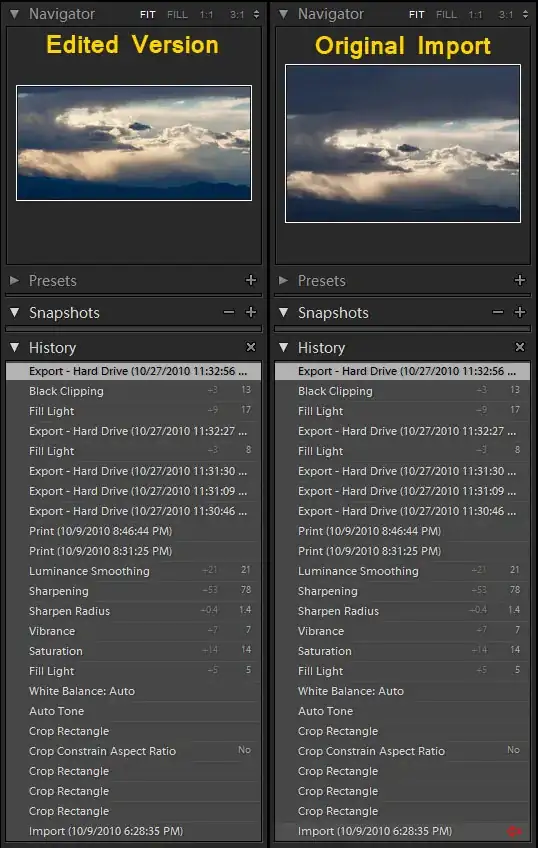
You can also use snapshots to give you point-in-time recovery options. You can snapshot before you ever make any edits, to create a second copy of your original image. Additionally, you can make snapshots at any time throughout your editing process. Selecting a snapshot will instantly revert your image back to that state. Every action, including selecting a snapshot, will be another entry in your history list, so even selecting a snapshot can be undone.
Generally speaking, you don't really need to manually manage originals and backups and the like. I was a bit confused by this when I first started using Lightroom as well, but once I figured out how it worked, I was able to greatly simplify my workflow. Whenever I import a shoot, I organize/tag/keyword, develop, then print. Once that is done, I close Lightroom and let it back up my catalog. I have a backup job set up in Windows that lets me perform differential backups on the location where I specifically choose to import my photos. This makes sure I have everything backed up, including my originals, my lightroom catalog and all its settings, my lightroom presets, as well as my edited image versions. I also use the "Open in Photoshop" command to open copies of my images in Photoshop for editing. This automatically stacks the image edited by lightroom with the copy I edit in Photoshop, and keeps them in the same folder. All of my images and any metadata associated with them are backed up with two simple jobs on a daily (or more frequent) basis.

-
I was hoping someone more familiar with it could guide on reseting. My original assumption of similarity to Bridge is a little off, to say the least. :) – Joanne C Oct 30 '10 at 02:14
-
Yeah, when I first started learning Lightroom, it was a little confusing. Now though, I doubt I could even use Bridge, as I am so used to LR it has become second nature. If you don't have LR, I recommend that you at least try out the trial. It is such a fantastic program. :D – jrista Oct 30 '10 at 02:18
-
That was extremely helpful. I really appreciate all of the detail! The way in which Lightroom manages the folders and catalogs is a bit awkward and hard to get used to but I'm sure with time, it will become second nature. Thanks again! – Sarah Oct 30 '10 at 02:41
-
@jrista; I may give it a whirl. I've been using Photoshop since 4.0 (pre-CS) that it's become a tried and true companion for me. – Joanne C Oct 30 '10 at 02:56
-
@Sarah: If his answer does the trick for you, make sure that you accept it. It's part of the whole Stack Exchange concept to do that. – Joanne C Oct 30 '10 at 02:58
-
@Sarah: Glad you found it helpful. :) Lightroom is pretty disconcerting at first. I didn't even like it much for about a month or so. I finally sat down with it one day and explored every option and tool, worked a bunch of photos, and learned how to use it. Once you understand its design, its workflow, and how it organizes its catalog and your images, it is a pretty fantastic tool. I do highly recommend you get to learn how it manages files. Its catalog, where it stores original images, where it stores presets, and how it stores your edited images. – jrista Oct 30 '10 at 06:02
-
@All: I think the hardest adjustment to make in LR is to get away from the notion of organizing your photos and folders. Adobe has followed Google and Apple's paradigm of keywords and fast searches, which makes organization antiquated. Just dump your photos into a folder, tag'em, and have fun. No more mucking about with layers and layers of folders and subfolders, import scripts and the like. – Alan Oct 30 '10 at 15:50
-
@Alan: Exactly! With lightroom's organization and searching tools, it works best if you import all of your photos into a single folder (or perhaps a few folders in a flat structure.) – jrista Oct 30 '10 at 19:36