I have 6 pictures all with the exact same dimensions, and I want to tile them in a 2 row, 3 column grid. I have been searching the net all day and got lost between fancy photo collages, photo mosaics (which require a "master image") and other irrelevant results. Surely there must be an easy way to do this. Hopefully using freeware software available for Microsoft Windows.
Asked
Active
Viewed 1.2k times
9
-
1For printing or for online use? Depending on your use, the best approach may be desktop publishing software, in which case http://graphicdesign.stackexchange.com/ might be better. Or, if it's for the web, you might not want to actually not combine them into one graphic file but rather have an HTML page with the layout and captions. – mattdm Dec 23 '11 at 14:34
-
If it is for online use, I would suggest posting a link to an example of what you are trying to do, and having this question migrated to the graphic design stack exchange site. – dpollitt Dec 23 '11 at 15:22
-
1it's for printing and also distribution via email. I want to create a single image from six separate images. – Dec 23 '11 at 15:57
-
4look up ImageMagick; a command like "montage -geometry 640x480+0+0 orig* out.jpg" should do it. Also, there are a couple related questions: http://photo.stackexchange.com/questions/10424/ and http://photo.stackexchange.com/questions/14494/ – Dec 23 '11 at 19:04
-
Try photoscape, it is a wonder piece for editing photos and more......animating, tiling, combining and above all it is free. You won't believe the results. – Jun 18 '13 at 12:08
-
@drewbenn +1 Care to post your comment as an answer? ImageMagick is easily the quickest way of doing this, plus it's free. – Kahovius May 14 '19 at 23:22
8 Answers
9
The term you are looking for is diptych or triptych. If you search on those terms you will find what you are looking for. If you use photoshop or GIMP, you can use actions or templates to place multiple images and create borders.
If you want standalone program to do just this one thing, here is one free (open source) program that does a good job. It is called DipStych.
Download from here
Diptych is very easy to use. You browse for your photos, preview them, and can then set the size and color of borders. It will resize the individual images to be the same height and/or width
Here is an example I've done:

It will stitch images vertically or horizontally, but not both, but it is easy to use. You could stitch 3 images horizontally and create one image. Then repeat with your second row of three. Then pull those two images back into the program and this time stitch them horizontally. So if I do another:

And now stitch them vertically on top of one another:
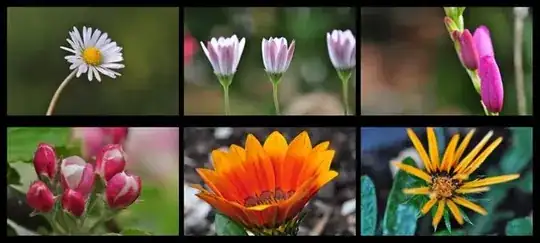
You would need to experiment with the borders in each step since the last step has caused that middle border to double up.

MikeW
- 33,408
- 10
- 88
- 123
-
-
-
1
-
-
"If you use photoshop or GIMP, you can use actions or templates to place multiple images and create borders." -> could you please elaborate? How to efficiently create a photo collage in Photoshop that isn't a plain grid? – Franck Dernoncourt Oct 12 '22 at 02:32
3
I had this exact question, google brought me here. Had Photoscape installed. Didn't realise it could do it.
Photoscape -> Combine (top menu) -> Down/Side/Checker(aka grid) on the right -> add your images and tweak.
Problem solved complete with inner and outer borders, optional image stretch and realtime preview.
Respect for the "diptych or triptych" explanation of terms!

Carby
- 31
- 1
2
One can use Tych Panel (code repo), which is the free extension for Adobe Photoshop:
Tych Panel is an extension for Adobe Photoshop that automates diptychs and triptychs creation. It supports an arbitrary number of layouts using a powerful row/column compositing paradigm. Together with a super easy panel interface, Tych Panel is the ultimate diptych, tripych & ntych automation tool. Tych Panel is released as open source and licensed under the MIT license.



Franck Dernoncourt
- 291
- 1
- 6
- 18
2
Adobe Photoshop has a built-in feature to do this: File → Automate → Contact Sheet II.
Franck Dernoncourt
- 291
- 1
- 6
- 18

Warren Young
- 5,224
- 1
- 25
- 35
1
I have 6 pictures all with the exact same dimensions, and I want to tile them in a 2 row, 3 column grid
One can use ImageMagick (open source, gratis and cross-platform) and use the command (assuming that the photos are PNGs):
montage *.png -tile 1x -mode Concatenate out.jpg
-tile 1x: concatenate vertically (use-tile x1for horizontal, or e.g.-tile 2x3to tile them in a grid with 2 columns and 3 rows)-mode Concatenate: concatenate without any white space between the images
More details on the montage program (part of ImageMagick) if interested.
Some ImageMagick useful commands for pre-processing your photos before the collage:
you can resize the image (to approximately 2MB in this example) using:
mogrify -define jpeg:extent=2048KB out.jpgyou can modify the dimension of a bunch of images using (to 30% in this example):
mogrify -resize 30x30% *.png
Also note that JPEG/JFIF supports a maximum image size of 65535×65535 pixels, while the PNG specification doesn't appear to place any limits on the width and height of an image; these are 4 byte unsigned integers, which could be up to 4294967295 .

and if you are curious: Why does ImageMagick's montage limit the JPG output to 65500 instead of 65535?
Franck Dernoncourt
- 291
- 1
- 6
- 18


0
One can use Picture Collage Maker Pro (40 USD, Windows and macOS, 15-day trial available). Limitation: max grid size is 30x30. An axis may not have over 30 items.
Example with picture 1 and picture 2:


Final collage:

Note: if one sets margin X = 0 and margin Y = 0, Picture Collage Maker Pro does not respect that and still adds a slight margin on the X axis, i.e. between columns (tested with Picture Collage Maker Pro 4.1.4). Example of a 2x3 grid with supposedly margin X = 0 and margin Y = 0:

Franck Dernoncourt
- 291
- 1
- 6
- 18