The best way to do it is to save project as a an image. this will save the background mapping as a single georeferenced raster image.
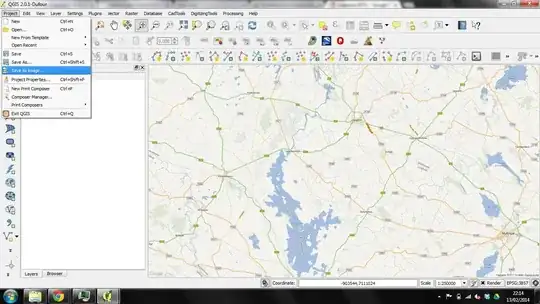
There is no specific way to crop an open map but this is the best way i have found to do it.
Let me know if i need to expand.
Expansion based on comments below.
What you seem to want to do is to maintain the different display modes of the open maps automatically for ilustration in the viewer and not in print format.
Therefore repeat the process for each level of zoom you wish and add the created raster image to the file. (as shown above....ie project save as image. only before you save select the zoom you want eg 1:250000, then to 1:100000 then 1:50000 etc etc etc.)
In the layer properties box select the tab General. On this there is a tickable box for scale dependant visabilities.

Choose your zoom scale in between which the layer will be visible. So as you zoom in each layer will turn on and off at set points of zoom. You will need to play around with it to meet your needs. in my example after i add the first saved image will be displayed from like 1 billion to 1:150000, as i said what suits YOUR project).
Lastly, no, as far as i am aware you cant set it that they cant zoom out. but the image will only e there between the zoom levels and it will only be the square you saved. but they can always edit it themselves in their project if it is giving it to someone else.


