I am exporting a QGIS map to an image format. I would like to have control over the output settings of the image (dpi), as currently it is only exporting the images at 96 dpi.
Does anyone know if this is possible?
I am exporting a QGIS map to an image format. I would like to have control over the output settings of the image (dpi), as currently it is only exporting the images at 96 dpi.
Does anyone know if this is possible?
Currently it's not possible to adjust the resolution of an output image using "Save as Image".
To create high-resolution output, you have to use Print Composer.
In QGIS 3 it's possible to control the extent and resolution using Export Map to Image...
There is also a way to get a high-resolution image with world file: With QGIS from command line you have the option to create PNGs in any size including world files.
Available options are:
[--snapshot filename] emit snapshot of loaded datasets to given file
[--width width] width of snapshot to emit
[--height height] height of snapshot to emit
[--project projectfile] load the given QGIS project
[--extent xmin,ymin,xmax,ymax] set initial map extent
You have to prepare your project first and then create a snapshot.
eg.
C:\Users\MyUser\QGis_Projects>qgis --snapshot italy.png --width 1500 --height 1000 --project italy.qgs


--extent option? I am a QGIS newbie.
– JJD
Sep 16 '12 at 10:25
--extent option QGIS launches and the QGIS start label is visible. No layer is visible. The terminal has some warnings but no error. That's it. Nothing happens. Just the busy icon of the mouse.. What can I do?
– JJD
Sep 16 '12 at 22:57
If you are willing to use the print composer in the latest versions of QGIS, it's relatively easy to get a decent map image at the resolution you want.
First, get the map looking more or less how you want in the regular editing window, then click on "New Print Composer" from the Project menu.

Once you've got the print composer open, use the "Add new map" button (1 in the image below), and drag across the page to create a new map (you can also change the canvas size if you need a specific size or aspect ratio). Bear in mind that any white space around the map will be rendered in your image, so you might want to stretch the map to the edge of the canvas, or even slightly over. If the map is not centered correctly, you can move it around using the "Move item content" button (above the "Add new map" button in the image). If you need to zoom in and out, you can set the scale in "Item properties" tab.
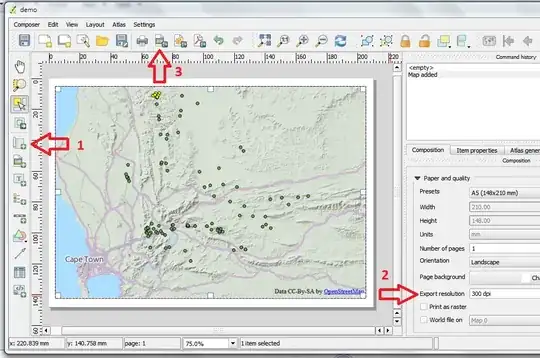
Once the map looks right, you can set your desired resolution in the "Composition" tab (2 in the above image). If you are wanting a particular sized output image (say 800x600 pixels), a trick is to set the size of the canvas to a custom value in inches, and then manipulate the resolution to get the correct image size. So to get an 800x600 resolution output image, you would need to set the resolution to 100dpi for an 8x6 inch canvas. To output the image, click on the "Export as image" button (3 above), and save in the desired format.
Finally, if you need the output file to be georeferenced, select the "World file on" checkbox in the "Composition" tab (just under 2 in the image above), and a world file will be saved together with your image.

To change the output resolution (tested on QGIS 3.10), make sure you are in your map layout:
From your map layout:
Layout > Layout Properties...
Choose the Layout Tab > Export Settings > Export resolution


