3

I have a question concerning label placement in QGIS. I'd like to rotate every label by 180°. Therefore, I set the rotation value to 180 (I've tried different ones as well as different variable types) according to the description:

Current rotation settings

I also applied every combination of "Preserve data rotation values" (what does that actually mean?) checked/unchecked and Rendering->"Show upside-down labels" (each value). But all this seems not to have any effect on the labels. What am I missing?

Joseph
  • 75,746
  • 7
  • 171
  • 282
Johannes
  • 41
  • 1
  • 4

3 Answers3

3

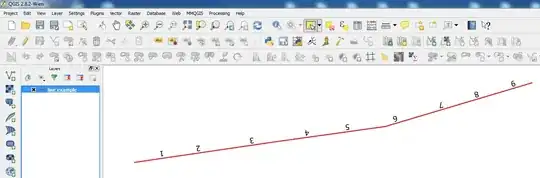
For QGIS 2.8.2, it works fine. You can turn the labels upside-down:

Line layer without labels

To rotate labels by 180 degrees (or turn them upside-down), from the Rendering tab you can enable the option the Show upside-down labels option which would automatically rotate the labels. You don't need to define a value for 180 degrees:

Make labels upside down

Then that should do it. Remember that 6 and 9 will look like each other when upside down:

Upside-down labels

Hope this helps!

Joseph
  • 75,746
  • 7
  • 171
  • 282
  • Thanks for your effort! But I want to label lines and, consequently, the "Placement"-menu looks different. Nevertheless, I used the same settings as you describe them here (especially this "show always upside-down labels"-option) – Johannes Jul 02 '15 at 10:07
  • @Johannes - It could be because you're using a different QGIS version. I did the exact same for a line layer and got the same results =) – Joseph Jul 02 '15 at 10:19
  • Okay, now I am confused. The screenshot I posted above is looking quite different from yours. But it is from version 2.8.2-Vienna (I guess you just skipped the name "Vienna") – Johannes Jul 02 '15 at 10:28
  • Yes, apologies, I skipped the name. In my version for Windows, it uses the German name (QGIS 2.8.2-Wien). I installed it through the standalone installer. – Joseph Jul 02 '15 at 10:33
  • 1
    Actually, mine says 2.8.2-Wien as well. As far as I recall, I used the standalone installer. For sure, it is the Windows version, 64-bit.

    Are you sure, you're labelling line features? I am confused about the options available for you concerning "centroid"

    – Johannes Jul 02 '15 at 10:43
  • You're right, I forgot to change the images of the options. I've added the interface to show the QGIS version and the layer. – Joseph Jul 02 '15 at 11:28
  • 1
    @Johannes: Note that Joseph's answer shows the Rendering section and not the Placement section. – underdark Jul 02 '15 at 17:57
2

As far as I remember, the rotation can only take effect if you also data-define the coordinates. Otherwise, labeling just follows the position defined in the placement section and ignores the data-defined settings.

underdark
  • 84,148
  • 21
  • 231
  • 413
  • Thank you! This sounds exhausting. Is there a(n easy) way to get the coordinates QGIS would determine automatically? (this is a line layer and I have not yet thought about determining the coordinates by hand...) – Johannes Jul 02 '15 at 09:58
  • In a minimal example I could see that you remember properly: When setting X and Y manually as well, the label is flipped. I just wonder why it's working for Joseph... – Johannes Jul 02 '15 at 12:07
  • 1
    Is this still the case for 3.8? – Ville Koivisto Aug 15 '19 at 10:24
1

Since I was not able to realize the rotation I did the following to achieve a comparable solution: I just switched the line direction (How can I switch line direction in QGIS?). This rotated the labels by 180°.

Johannes
  • 41
  • 1
  • 4