I have just downloaded Mountain Lion and I would like more than one desktop (the default setting) how do I change the number of desktops?
Asked
Active
Viewed 3.2k times
10


-
It was not there for me either, after ML upgrade. Not left or right. I loged in as another user. There it was working. I logged back in as my user and it was back working too. – Nov 04 '12 at 06:21
4 Answers
23
Open "Mission Control" (icon should be in the Dock or else through Launchpad) and move your mouse to the upper-right hand corner. A '+' sign will appear allowing you to create an additional virtual desktop. The dimmed half of a new desktop appears in the upper left if the dock is changed to the right side of the screen but otherwise is in the upper right when the dock is in the left or the bottom.
Add a Desktop

Remove a Desktop


-
-
2
-
-
1It also works if you don't see the '+' :-) The important part is the faint picture of a new desktop sliding in from the right side of the screen. – nohillside Oct 07 '12 at 16:01
-
4It's worth noting that the plus button will appear on the left of the screen if your dock is pinned to the right. – colons Nov 03 '12 at 19:36
1
Just received new from Apple Macbook Pro running ML, 10.8, 2 November 2012.
For more desktops, activate Mission Control and put mouse into upper right corner. A very small image of the desktop I use comes up. Click on it to create another desktop.
To remove/delete a desktop, hover the cursor over the desktop to remove and an X will appear (while in 'mission control.') Just like widgets or apps on the iPhone.

nohillside
- 100,768

Dave
- 11
- 1
-
So I logged out of my user account and logged in as another user, and lo-and-behold, upper right corner is an image of the desktop with a little plus in it. Perhaps it depends on something... But it is a little ghost image of the desktop- click on it and it'll give you another desktop. – Dave Nov 03 '12 at 05:39
1
In addition to the excellent answer given by @Tyr, you can quickly create a new desktop by dragging any window to the area where your newly created desktops appear. The button-image will darken, and Mission Control will immediately create a new desktop for that window (or group of windows).
Before dropping window:

After dropping window:
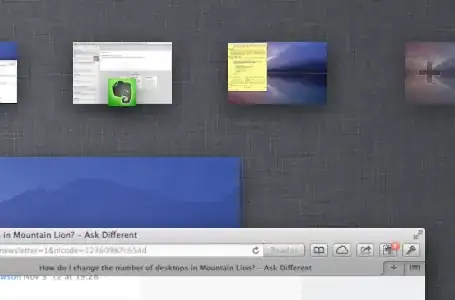
At any time in Mission Control, you can hold Alt to see the "New Desktop" button image, as well as "Close" buttons on all your desktops.
Edit: Forgot to mention that holding Alt also keeps you in Mission Control; clicking on a desktop will focus that desktop in MC, but not activate it. Comes in handy.

Tyler Mumford
- 750
-1
In Mountain Lion, if your dock is on the right side of the screen then you have to navigate to the upper left corner of the screen, not the upper right. Not sure why that change was necessary...

Yes Barry
- 668

-
3Dwight Schrute tone: FALSE! You still have to navigate to the upper right corner to add desktops. If you want to remove a desktop, you move to the top left of the preview window. – gentmatt Sep 29 '12 at 18:44
-
-
2
-
2@IainDawson Is correct - the default upper right position for adding a desktop is in effect _unless you have moved the dock to the right in which case the add a desktop area is in the upper left. I have edited the accepted answer to clarify things. Feel free to delete anything that no longer makes sense now that the context of dock is hopefully clear to all. – bmike Nov 04 '12 at 17:20