The widget iStat Pro allows to monitor different system stats like
- CPU usage
- network bandwidth in/out
- memory usage
- ...
How can I view such system stats in the Terminal?
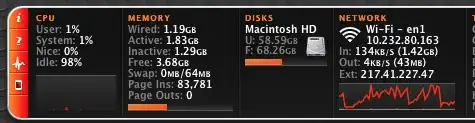
Depending on what you want displayed there are several options available using Terminal:
top: real-time sorted display of running processes such as memory and CPU usageiostat: I/O summary statistics for terminal, device and CPU operationsvm_stat: Mach virtual memory statisticsdiskutil list: disk/volume capacitydf: used/free space on mounted partitionsfs_usage: real-time file activity for both disk and networknettop: updated information about the network (a bit like top for net I/O)w: who is logged in and what they are doing; plus a brief system load summaryifconfig and ipconfig: network interface and IP protocol detailsMost of these commands have a huge list of options. It's probably best to consult the man pages for details.
I usually rely on:
top -u -s 10 to identify CPU-hogging processes;fs_usage -f filesys or fs_usage -f network to identify processes generating a lot of disk/network load.

The iStats ruby gem lets you see the CPU temperature via the command-line.
$ gem install iStats
$ istats


You can use top. It'll show CPU & RAM usage together with all the processes. It'll also show you network packets in/out, and discs data read/written.


The above are great commands. Also, I like to use
$ du -ks *
To show how much disk space all the folders below my current directory are using.
This command lists the top 10 directories in order of size:
$ du -sh * | sort -nr | head -10
For an overall system stats tool, I like the python glances better than top:
https://nicolargo.github.io/glances/
This is how you can install it on MacOS using the Homebrew package manager:
$ brew install glances
This is how you can install it on Debian/Ubuntu:
$ sudo apt-get install glances
This is how you can install it on CentOS/Red Hat:
# yum install glances

My preferred way to see CPU usage with a single command that returns instantly is
ps -axro pcpu | awk '{sum+=$1} END {print sum}'
-ax: all processes, including non-terminal processes and ones you don't own.
-r: sort by cpu usage
-o pcpu: only output the %cpu field. %cpu is a 1-minute average of the process, but will only average over the lifetime of the process if its lifetime is <1min.
awk: sum the first column in each line and print the sum at the end.
This is a per-core CPU metric, so on a 12 core CPU you can get up to 1200; you're not capped at 100.

If you are having network problems, especially with a server exposed to the Internet, lsof(1) can be extremely useful. It lists all open files.
For example, lsof | fgrep '/Library/WebServer/ will show you all the files that are open on your web server. I've been using this a lot to find and ban "leeches" and "bots" who are reducing my bandwidth by automatically sucking down file after file.


Here are two commands for determining your local and public IP:
ipconfig getifaddr en1
This is when using Wi-Fi. For ethernet use en0.
curl whatismyip.org
en0. You can find out what it is with networksetup -listallhardwareports | grep -E '(Wi-Fi|AirPort)' -A 1 | grep -o "en.".
– Lri
Feb 23 '12 at 23:05


man topyou can see how to customize the output. – Rene Larsen Feb 05 '12 at 13:13