9

I'm trying to take a screen shot (using Grab) of a quicktime video that is paused. The problem is that the video controls don't disappear, and thus are shown in the resulting shot as seen below:

screen capture with controls still shown

Is there anyway to hide this UI when paused, much like it hides when the movie is playing?

I'm using Quicktime 10.0 on 10.6.8 (Snow Leopard)

pkamb
  • 8,791
  • Try MPEG Streamclip instead for your screenshots. That's what I use. – daviesgeek Jan 18 '12 at 18:51
  • @mb I was wanting to do the same thing without success but think I've found a solution. It seems that the control panel comes up by default but once you're at the part you want to take a snapshot of and you've paused the movie, click in the actual Quicktime window and the panel should disappear. If you're scrubbing through the movie using a mouse and you get to the part you want, again, click in the Quicktime window and the control panel disappears. You can then use the shortcut outlined by gentmatt to select only the Quicktime window and you should have what you're looking for. –  Jul 07 '12 at 10:51

4 Answers4

4

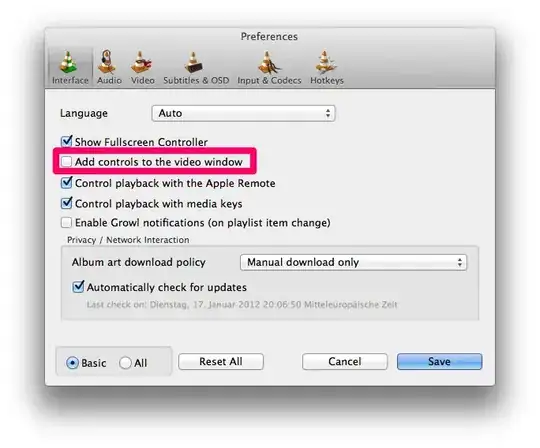
In case no solution for Quicktime is found, here is a solution for movie snapshots using the VLC Media Player.

In the preferences disable Add controls to the video window and click Save. Now you can take a snapshot as explained in my other answer.

enter image description here

gentmatt
  • 49,722
  • 3
    VLC also has an action for saving an image of the current frame (Video > Snapshot, assigned to ⌥⌘S by default). – Lri Jul 07 '12 at 15:42
3

You can take a screenshot without the controls:

  1. Move your mouse cursor out of the quicktime window. (The media controls disappear.)
  2. Press ++4 then space
  3. Move your mouse cursor back into the quicktime window. (The media controls stay hidden)
  4. Click your mouse to take a picture.

More tips on how to take screenshots in MacOSX can be found here.

gentmatt
  • 49,722
2

I had a problem with Quicktime Player hiding the controls without returning them at all during playback. On my own I discovered it was due to Quicktime's settings left over from an upgrade.

This is what I did to reset Quicktime Player's Settings to factory defaults:

defaults delete com.apple.QuickTimePlayerX

This helped me, and I hope it helps someone else.

1

I just press Command C for copy, go to Photoshop and press Command N for new, then the settings will be the exact size of your copied image (so just hit enter), then Command V for paste, and bam-- you're all set.