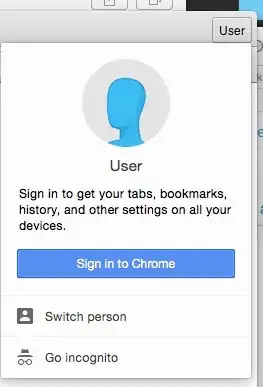
I used to do that some years ago. Just tested it and it still works.
Add two different accounts
System Preferences->Users&Groups
+
Full : Chrome1, Account : chrome1, Pass : password, Ver : password
+
Full : Chrome2, Account : chrome2, Pass : password, Ver : password
Open a Terminal (Applications->Utilities->Terminal) and launch Chrome under these accounts (Plus, launch one under the account you are logged in to get at total of 3)
sudo -u chrome1 /Applications/Google\ Chrome.app/Contents/MacOS/Google\ Chrome
Open a new tab in Terminal cmdT and enter:
sudo -u chrome2 /Applications/Google\ Chrome.app/Contents/MacOS/Google\ Chrome
You will have 3 separate "Chrome" icons in the Dock now. Now sign in separately into each Chrome.
I recommend that you login once to these accounts using the GUI, otherwise you will get Keychain errors when you quit Chrome.
To put direct "links" to open these browsers into the Dock
Applications->Automator
File->New
In the search field, enter "script", add a "Run shell script"
echo yourpassword | sudo -S -u chrome1 /Applications/Google\ Chrome.app/Contents/MacOS/Google\ Chrome
(Change yourpassword of course)
File->Save->Applications->Chrome1.app
Close Automator
Open /Applications in Finder
Drag "Chrome1" to the Dock
Click Chrome1 in the Dock
Hope this works for you as for me.