I’d like to assign an “Every Application” keyboard shortcut to bring up the login window, for when I step away from my computer. Is there a way to do this? (Lion-only methods are fine.)
Asked
Active
Viewed 1.5k times
11

-
Related: http://apple.stackexchange.com/questions/11286/how-can-i-show-the-login-window-after-a-period-of-inactivity – ghoppe Jul 21 '11 at 17:27
-
2Common utilities like launchbar allow a quick keyboard shortcut to secure your session without actually logging out or having the screensaver be password protected. – bmike Aug 15 '11 at 22:18
-
1As noted on http://apple.stackexchange.com/questions/18365/is-there-a-similarly-fast-alternative-to-crtl-shift-eject-for-new-macbook-th, there’s now a built-in shortcut for this, ctrl+shift+power. – Paul D. Waite Oct 25 '15 at 18:23
9 Answers
7
If you want to assign alt ⌥+cmd ⌘+L to lock screen without installing any programs, in 5 minutes, I suggest you doing these three steps:
Create a Service in Automator and set "Service receives selected" to "no input" instead of "text".
(Still in Automator) add 'Run AppleScript' (search on the left "apple" then double-click).
In the script in place of (* Your script goes here *) you copy-paste:do shell script "'/System/Library/CoreServices/Menu Extras/User.menu/Contents/Resources/CGSession' -suspend"
Save and exit. (You can name your service "Lock Screen".)Open System Preferences, Keyboard then in Keyboard Shortcuts tab and under Services you will find your service "Lock Screen" towards the bottom of the list.
Now, click on "none" next to "Lock Screen" to assign ⌥⌘ L to your service. Actually I suggest rather ⌃⌥⌘ L because ⌥⌘ L is assigned in Finder.
Done.
(For step 2 cudos goes to Lauri Ranta!)


Barney Szabolcs
- 195
-
-
This was the best solution I also exported it so all you have todo is install it : https://dl.dropboxusercontent.com/u/20485770/Lock%20Screen.zip – LukePOLO Dec 01 '16 at 18:56
4
Press Shift-Cmd+Q. Make sure that "Reopen windows when logging back in" is checked. Press enter.
Thanks to Lion, when you log back in, everything will look the same.

René
- 3,904
-
Not a bad workaround. I think it causes browser tabs to reload though, so not ideal if say you’re on a 3G internet connection. – Paul D. Waite Jul 21 '11 at 17:51
-
Yes it does cause everything to reload, which also may take some time depending how many apps you were running when you logged out. But then again other solutions require complex scripting setups, so this is as easy as it gets ;) – René Jul 21 '11 at 19:36
-
-
1Scripting Fast User Switching comes to mind: http://superuser.com/questions/44433/create-a-keyboard-shortcut-for-fast-user-switching-in-mac-os-x – René Jul 21 '11 at 20:26
-
-
Alrighty, for the record, I went with this great answer: http://superuser.com/questions/45740/fast-user-switching-apple-menu/46308#46308 – Paul D. Waite Jul 25 '11 at 23:41
-
This is the FIRST not annoying effect of the Saved Application State feature I heard of... – bot47 Feb 28 '12 at 10:05
-
This is not handled gracefully by all applications. TeXStudio, for instance, lost the text document I had been working on and I had to evert to an older version of the document that was missing recent edits. – Jess Riedel Dec 31 '17 at 16:03
4
I realise that this thread is probably quite old by now, but for all the options that has been given here, the simplest way has not been discussed.
Apple allows you to lock your screen with a keyboard shortcut. You don't have to create one, there is one built right in to OSX — via the “Require password after sleep or screensaver” feature.
Here is how to use it:
- Make sure that you have “Require password after sleep or screensaver begins” set to “immediately”.
To do this, follow these steps:
- Open System Preferences
- Click on Security (on Lion, “Security & Privacy”)
- Go to the General tab
- If you don't already have one, put a tick in the box next to "Require password after sleep or screen saver begins"
- Set the time interval to “immediately”
- Exit System Preferences
When now when you want to lock your Mac, simply use the keyboard shortcut
Ctrl ⌃ + Shift ⇧ + Eject ⏏ or Ctrl ⌃ + Shift ⇧ + Power


Jay
- 56
-
Not bad at all. Can be a bit sub-optimal if you’ve got Safe Sleep enabled and you want to unlock your machine soon after locking it, as it can still be writing the contents of your RAM to disk. – Paul D. Waite Feb 28 '12 at 07:23
-
Using Command ⌘+ Shift ⇧ + Eject ⏏ puts the Mac into sleep mode, which can achieve a similar goal – sw.smayer97 Oct 16 '22 at 08:59
4
Another way to log out to the fast user switching screen is to assign a shortcut to this shell command:
/System/Library/CoreServices/Menu\ Extras/User.menu/Contents/Resources/CGSession -suspend
If you have the Alfred Powerpack, you can assign a shortcut to the lock action, but just typing "lock" doesn't take that much longer.


-
Just use this with a Automator Service and a shell script Action, Then assign a hotkey in the System prefs. – markhunte Feb 28 '12 at 07:33


2
You could also set an Applescript to click the "Login Window" menu item after a certain amount of time:

If you want to navigate the menubar, the script goes something like this:
on run {input, parameters}

    (* Login menu has to be the last! *)

  tell application "System Events"
    tell process "SystemUIServer"
      set n to number of menu bar items of menu bar 1
      tell menu bar item n of menu bar 1
        click
        repeat with i from 1 to 10
          try
            if name of menu item i of front menu contains "Login Window" then
              click menu item i of front menu
              exit repeat
            end if
          end try
        end repeat
      end tell
    end tell
  end tell

  return input
end run

nohillside
- 100,768

daviesgeek
- 38,901
- 52
- 159
- 203
1
This may not answer your question entirely, but at least it is a step in the right direction.
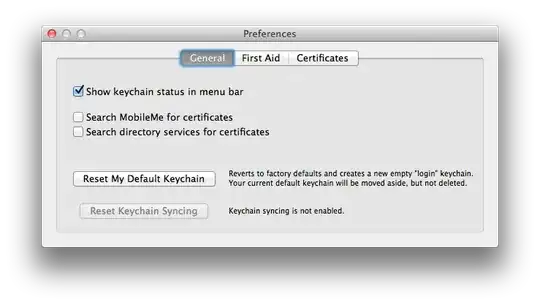
- Open Keychain Access located in the Utilities Folder inside the Applications Folder.
- Open Keychain Access preferences and check the box "Show keychain status in the menu bar."
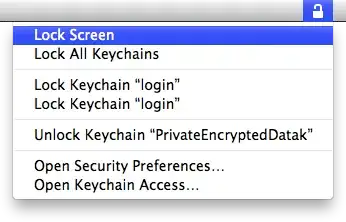
- From the Lock icon in the menu bar, choose "Lock Screen."

molle
- 1,365
-
I have yet to find a way to assign a keyboard shortcut to the menu bar item and/or Keychain Access menu bar menu. – molle Jul 23 '11 at 08:21
-
yeah, I think there is a way to get Shift-F7 to be a shortcut for assigning keyboard focus to the menu bar. If the keychain status icon is the leftmost icon in there, then it’s nearly a keyboard shortcut for the lock screen (i.e. Shift-F7, down arrow, enter). It’s a bit cumbersome though, and you have to keep the keychain status icon as the leftmost one in the menu bar. – Paul D. Waite Jul 25 '11 at 11:31
-
1I'm writing on my phone right now, so I can't find it for you, but I know there are ways to AppleScript menu bar items. Maybe this can help? http://goo.gl/0peFU – molle Jul 25 '11 at 13:23
1
Wow this has been going on a while… But after trying all these different suggestions I found the easiest way for me that I don't see mentioned here and elsewhere but is sorta common sense to me now that I think of it…
- Set the require password after sleep or screensaver to "immediately"
- Enable "hot corners" and select a corner to either "start screen saver" or "put display to sleep".
Then all you have to do is simply slide your cursor all the way into said corner and your screen saver will start of the display goes to sleep and then when you move the mouse again you will be at the login screen!
No scripts, no menu bar short cuts, no key sequences, just a simple swipe of the trackpad! This works wether you have the corner set to screen saver, sleep display, or close the lid.

grg
- 201,078

KawaiiGuyy
- 11
-1
There's only one way to do this, if you want to invoke the Login screen from a keyboard hotkey shortcut. It requires using the built-in Automator application in Mac OS. Here's the article on how to do it:

Macdara
- 1
-
1In general, links don't make great answers (the website behind the link could disappear, the link could change, etc). Could you edit your answer to summarise the steps required? – John N Feb 13 '17 at 10:03
-
1“There's only one way to do this” — except there’s also this way to do it. – Paul D. Waite Feb 13 '17 at 14:35