78

I have moved an installer into the launchpad (uTorrent-Installer). The problem is that I would like to remove it now but as it is an installer it doesn't appear in "Applications" in the Finder. I can't right-click the icon to remove it nor can I drag and drop it into the trash.

Can I delete apps from launchpad?

L2G
  • 288
MarAja
  • 883
  • Could you perhaps refine what you mean by "I can't right the icon to remove it nor can I drag and drop it into trashes..." Are you looking for help using Spotlight to locate the file and delete it with key shortcuts or something else? – bmike Sep 10 '14 at 13:24
  • Are you sure you mean launchpad? Or can it also be your Dock? – CousinCocaine Sep 10 '14 at 13:31
  • 3
    defaults write com.apple.dock ResetLaunchPad -bool true; killall Dock – eccstartup Apr 24 '15 at 14:03
  • Drap icon to Appdelete.app, It will be removed by Appdelete correctly for some special situations that we can't open or show in finder – Albert.Qing Jun 19 '18 at 20:06
  • @eccstartup WARNING: this command will reset all of the launchpad personalisation such as folder structure or icon placement. – Nanashi No Gombe May 13 '19 at 22:58

18 Answers18

79

If you are using Yosemite here is the surgical approach to remove only what you want to, instead of wiping out all of Launchpad.

Open up your Terminal app of choice, then use the following command:

sqlite3 $(find /private/var/folders \( -name com.apple.dock.launchpad -a -user $USER \) 2> /dev/null)/db/db "DELETE FROM apps WHERE title='APP_NAME_CASE_SENSITIVE';" && killall Dock

to remove an application from the Launchpad.

toppie.c
  • 387
  • 3
  • 7
ahall
  • 1,656
  • First solution I found that actually worked for me. Thank you! – me_and Jul 17 '15 at 17:30
  • This doesn't work on MacOS Sierra 10.12. – Parth Sane Nov 23 '16 at 05:11
  • 1
    Gives error Error: unable to open database "/private/var/folders/bd/q50jcx3s0q9dhskwrwb308hh0000gp/0/com.apple.dock.launchpad": unable to open database file – Parth Sane Nov 23 '16 at 05:12
  • 2
    I did something similar which got what I wanted. 1) I ran sudo find /var/folders -name com.apple.dock.launchpad (the file that is shown is actually a folder) 2) I entered the com.apple.dock.launchpad folder and then entered its db folder 3) I opened the db file in that folder with the DB Browser for SQLite. 4) I went to the Browse Data tab 5) I selected the apps table 6) I filtered the title column for the app name I wanted to remove 7) I selected its entry & clicked Delete Record 8) I logged out and logged back in, rather than killall Dock – GDP2 Feb 22 '18 at 21:47
  • Note that if your machine has multiple user accounts you will probably want to add a -user YOUR_USERID argument to the find command. – cpcallen Sep 17 '18 at 11:30
  • I used the command in answer and it help me deleted a unwanted icon "GoToMeeting v8.35.1", after that, another one "GoToMeeting v3.36.0" shown up, ran the same command doesn't help. so I tried: cd /private/var/folders/ && open ., and then search GoToMeeting this folder in Finder, 1 folder shown up and I delete it, GoToMeeting gone. – ahgood Oct 16 '18 at 23:07
  • 1
    Works on Mojave after delete -o -user $USER. Thanks. – Yam Nov 09 '18 at 15:07
  • The '-o -user $USER' should be '-a -user $USER' The goal of the find command is to find the launchpad directory AND ('-a') the one that is owned by the current user (which is significant if there are multiple user accounts on the Mac). – toppie.c Feb 20 '19 at 18:56
  • Very creative solution, awesome, thanks, worked. – sarimarton Jul 06 '19 at 19:42
  • Yes! Thank you! :') High Sierra. Got a damaged "Install macOS Mojave". Cannot remove it another way. – Lorgen GR Magpantay Mar 17 '20 at 11:13
  • Unfortunately this removes all apps from any folders you may have created (tested in macOS 10.15.3) – Novice C Apr 21 '20 at 12:14
  • Worked with MacOS Monterey - version 12.3.1 – Jamith NImantha May 18 '22 at 13:15
  • This is awesome! Works with Shortcuts that have been deleted but are still lingering as well. – Jackson Zamorano May 25 '23 at 15:35
  • Worked perfectly on my old Mojave system :) Many thanks! – Seamus Mar 03 '24 at 05:35
66

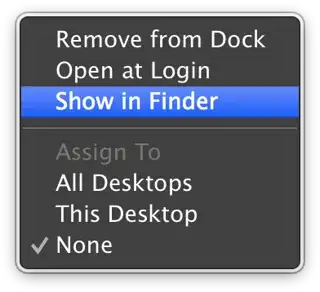
Drag the icon or icons to the dock, then right click the icon on dock, select "option" - "show in finder", system will open a window to show you where the app located, then you can just threw it/them to the Trash.

55

By default, Launchpad shows you all the apps installed on your Mac. launchpad

To remove a Mac App Store app that appears in Launchpad

Follow these steps while you are logged in with an administrator account:

  1. Enter Launchpad.
  2. Click and hold on an icon until you see all icons jiggle.
  3. Click the "x" button in the upper-left of the Mac App Store app icon you want to delete.

Note: If you do not see an "x" button, either the app is not from the Mac App Store or you are logged in as a standard user.

  1. Click "Delete" in the confirmation dialog to delete the app.

Tip: If you want to reinstall a deleted app, open Mac App Store, click the Purchases icon, then click on the "Install" button for the app.

This post is a shameless copy from: http://support.apple.com/kb/HT4673

Check your Downloads folder

As you are talking about an installer, this might be located in your Downloads folder. If so, you need to remove it there.

Another way to delete an app from the launchpad:

  1. start your app from the launchpad
  2. right click you app in the Dock
  3. choose for 'options' -> 'Show in Finder'
  4. now you can also delete it

show in finder

L2G
  • 288
CousinCocaine
  • 10,098
  • I personally think this is a better and more complete answer than the others, given it's more user friendly. – Harv Oct 11 '16 at 20:01
  • 1
    Sierra* I still had to drag the icon into the trash after but thank you for that. – AMAN77 Oct 17 '17 at 08:29
  • Thanks for this! I made the mistake of dragging an app to the launchpad. I for some reason thought it was a self-running app and didn't realize it was an installer. Holding down on it didn't show the X. Deleting it from downloads worked. Silly. – Wade Feb 13 '22 at 03:22
  • I certainly found the click and hold then remove the icon to be the easiest for me to remove a defunct install icon. I prefer this to the accepted answer. – CortexCompiler May 31 '22 at 12:26
12

Check both of your Applications folders — there is an OS application folder (Shift+Command+A) and there is a user-based Application folder which is in the users home folder (Shift+Command+H).

7
  1. open finder
  2. go to your home or root directory (Icon looks like a house, may have your name or the name of your mac on it)
  3. Open the applications folder located in that directory.
  4. Drag the offending icon to the trash
  5. Check Launchpad and watch it fade away
6

When an app has been uninstalled, often the icons are still in Launchpad. You still can not remove it. To remove click it and it will show with an question mark: drag it to the trash then.

LexS
  • 1,451
4

macOS Sierra 10.12.3:

If it's a .dmg file:

  1. Eject it in desktop
  2. Delete it in finder
  3. Open it in launchpad: It will show "?" in the icon
  4. You can now drag and drop it to Trash
Hamid Rouhani
  • 1,491
  • 2
  • 15
  • 27
2

I noticed while trying to figure this out that some of the apps displayed in LaunchPad aren't MacOS apps at all- but Chrome extensions that I added to the browser.

To delete these, you can either:

1) Open a finder folder and enter (Shift+Command+H) to see the applications folder there- you can delete these items by dragging to the trash - or;

2) Load Chrome and going to settings/extensions and deleting them from the browser itself.

2

Check the Chrome Apps folder to see if the app you're trying to delete is showing up on Launcher but n ot in Application.

Your HDD> Users> [YOU]> Applications> Chrome Apps.

This worked for me, I hope it works for someone else.

Melissa
  • 31
2

For Sierra first run this:

sqlite3 $(sudo find /private/var/folders -name com.apple.dock.launchpad)/db/db "DELETE FROM apps WHERE title='APP_NAME_CASE_SENSITIVE';" && killall Dock

which will result in an "unable to open database file" error response. Copy the database file name which is within the begin and end double quotes in the error response.

Next run this:

sqlite3 PASTE_WHAT_YOU_COPIED/db/db "DELETE FROM apps WHERE title='APP_NAME_CASE_SENSITIVE';" && killall Dock

Glorfindel
  • 4,057
  • I have about 15 messages like find: /private/var/folders/st/vpfkxn9x22x4gtj8bvjfgsvh0000gn/0/com.apple.LaunchServices.dv: Operation not permitted, is it safe to try them all? – lebed2045 Jun 17 '20 at 07:53
2

I had the same problem as you, but I fixed it with these steps (the app wasn't from the Mac App Store):

  1. Delete the app using Finder.
  2. Empty your trash.
  3. App will now have a question mark icon which you can drag to the trash.
Jasmin
  • 21
1

In difficult cases, you may need to have the Launchpad rebuilt from scratch. I had to do this when I found an app in my Launchpad that could not be opened "because it may be damaged or incomplete," but I was unable to find the app anywhere on my system.

This hack requires executing commands from the Darwin command line with the Terminal app. You can do some real damage in the command line if you're not experienced with it (sometimes even when you are experienced). If you still want to try this but you are at all hesitant about it, do as you would with any potentially dangerous operation and make sure you have a current backup of your system.

I really mean it when I say the Launchpad icons will be rebuilt from scratch. They will probably end up in completely different places than what you remember, which could be a hassle if you have spent a lot of time organizing them into folders or otherwise arranging them "just so."

  1. Open a terminal window.
  2. Enter cd ~/Library/Application\ Support/Dock.
  3. Enter ls.
  4. You should see a filename that looks something like 283F028F-D4F3-42D1-90E7-4337AEC50818.db (You may see other files ending with .db, but the important one will have a pattern like that.)
  5. Rename the file with the mv command. I like to copy-and-paste the filename, then add {,.backup} to the end of it, a little Bash trick. So in this example, I would use this command: mv 283F028F-D4F3-42D1-90E7-4337AEC50818.db{,.backup}.
  6. Enter killall Dock. Your desktop and icons will disappear momentarily, but don't panic. They should come back after a few seconds. (If they don't after a minute or so, you should be able to recover by logging out and back in.)
  7. Open Launchpad.

If you used the killall Dock command in step 6, the Launchpad should come up fairly quickly. If you had to log out and back in, you may have to wait a minute or so while watching a "Loading Applications…" message, then watching a grid of empty placeholder icons get filled in little by little. Either way, you should eventually see a cleanly reorganized Launchpad without any extraneous app icons.

L2G
  • 288
1

I had uninstalled an application but the icon still appeared in the launchpad. What removed the icon was to try to launch the application by choosing the icon (see LexS). Of course nothing launched because the application was already uninstalled. When I brought up the launchpad again there was a "?" on the icon. When I chose and held the mouse on the application the "X" appeared. Select the "X" and it's gone.

0

I just get my Mac yesterday, and we have exactly the same problems. I installed a virtual machine to run Windows and then I deleted the program. However, there is a folder called "Windows 8 tools" left in the launchpad. I couldn't drag it to the trashcan nor could I right click it to delete. Then I just dragged it to the dock, right click it, and choose Options-show in the folder. I dragged the program to the trash and deleted it.

0

If you have an application that does not 'jiggle' when you try to delete it - go to Finder, click on Applications, find the app, right press on your Apple mouse, and click 'moved to trash'. A window will open up saying.....before you delete....IGNORE IT! Go to Waste and empty it! Go back to your LaunchPad.....and the app is no longer there....it's gone!

-1

Press control+option+command+application icon in launchpad

ajay
  • 1
  • What does this do, how does this differ from just pressing option and how does it solve the problem stated in the question? – nohillside Jul 09 '16 at 12:32
  • That seems to just open the item, just as if you'd clicked on it without modifiers. – Calion Mar 07 '18 at 18:27
-2

i just using cleanymac to complete uninstalling deleted program thats still showing in launchpad.

Galih
  • 1
-2

Press Cmd ⌘ Shift ⇧ H in Applications (Finder), then just drag the items to the Trash.

Tetsujin
  • 115,663
  • Command-shift-H goes to your Home folder. Dragging items from there to the trash might be a very bad idea. I think you mean Command-Shift-A, but doing that while you're already in the Applications folder, as you suggest, is redundant; you're already there. – Calion Mar 07 '18 at 18:26