18

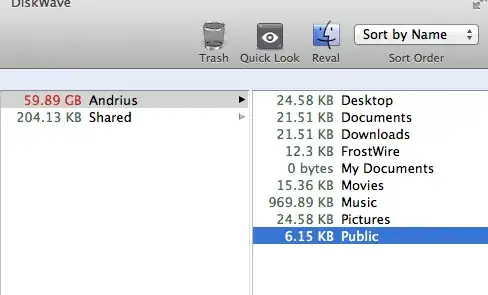
I have deleted all the files under User folder, but it still says that it uses ~60GB of space. Real usage is ~2MB. There are no more files to delete. Is there any hidden files i am not aware of. If yes, how i can delete them?

DiskWave view

I do not want to delete the user account. I just want to get rid of information that is useless, but I don't want to mess up my Mailbox or other stuff, so I want an advice if it's safe to delete some parts of those folders.

Ruskes
  • 48,129
Matas
  • 181
  • 7
    Have you emptied the Trash? – sayzlim May 30 '14 at 16:00
  • @Buscar Could you expand on what exactly you mean by your comment? – grg May 30 '14 at 16:03
  • 2
    If you go to the library folder inside your user folder (Finder > Go > hold option and select Library) you can press command+I to see it's size. I'm willing to bet this is where the bulk of the data is. Beyond that I'd wager that you're using Gmail along with Apple's Mail application and that the Mail folder inside your library folder (~/Library/Mail) is very large. – Mr Rabbit May 30 '14 at 16:11
  • 1
    @GeorgeGarside - Outside of using Single User mode when you first boot there is no way to delete your user account if it's the only account on the Mac. Beyond that it's impossible (or at the least pretty foolproof) to delete the user account that you're booted to. If there was a second admin user account you could login to the second account and delete your primary account, but not while logged in as yourself. – Mr Rabbit May 30 '14 at 16:13
  • 1
    Yes trash can is empty. – Matas May 30 '14 at 16:13
  • @MrRabbit I'm aware of that—my point was what relation does that have to the question as OP isn't trying to delete his user, just the contents…? – grg May 30 '14 at 16:14
  • Also, you can download DiskInventoryX for free, it will list all of the files on the Mac along with their size, type and location. It's very handy for determining where space is being used. @GeorgeGarside - Ah ok, gotcha. – Mr Rabbit May 30 '14 at 16:15
  • Mr. Rabbit - yes i am using gmail and my Apple's Mail. So do i need to delete Library/Mail folder. It means i am gonna loose info from my Apple mail ? – Matas May 30 '14 at 16:15
  • Ok i'll try your advice - thank you for the quick response. – Matas May 30 '14 at 16:16
  • @MrRabbit thanks, that is what I said, you can not delete your self :) – Ruskes May 30 '14 at 16:17
  • @Matas - Not just yet. Check the size of it first by navigating to that folder and pressing command+I to get the size. If that's where the space is being used then there are some ways to fix it, you don't delete the whole Mail folder though. – Mr Rabbit May 30 '14 at 16:18
  • Mr. Rabbit you were right Library folder 59.89 GB. What's your suggestion, go through all the folder or is there any folders that just backs up info and i don't need them by default ? – Matas May 30 '14 at 16:19
  • @Matas Why would you delete all the contents of the account without deleting the account itself? What are you trying to do? – njboot May 30 '14 at 16:24
  • njboot i don't want to delete the account. Thanks for your help, but i think MrRabbit will gonna help me fix this. – Matas May 30 '14 at 16:27
  • @MrRabbit Mail folder takes 35 Gb. and application support 23 GB. Can you suggest what to do next ? – Matas May 30 '14 at 16:30
  • 2
    @Matas what do you want to do? – njboot May 30 '14 at 16:31
  • @njboot to get rid of information that is useless, but i don't want to mess up my Mailbox or other stuff, so i want an advice if it's safe to delete some parts of those folders – Matas May 30 '14 at 16:34
  • http://www.cnet.com/news/fix-os-x-mail-creating-multiple-recovered-messages/ - I'm tied up at the moment but these steps are what I recall working for this particular issue. Definitely read the whole article before diving in but I'd wager the article describes your issue. – Mr Rabbit May 30 '14 at 17:35
  • OmniDiskSweeper can only find 52GB of my 128GB disk, even with full disk access. It counted Library and System. My disk is not partitioned. Yet my mac says I only have 700MB left. I have done a reboot and a safe reboot, no luck. I used my computer while my system clock was in December 2018 for some while, and I hypothesize that some cache invalidation mechanism failed. – noɥʇʎԀʎzɐɹƆ Jul 27 '19 at 21:52

15 Answers15

18

The space is most likely being occupied by the various files and folders in ~/Library, which is hidden by default on OS X. You can show the Library folder by navigating to your home folder in Finder, pressing ⌘J and showing the Library folder.

Furthermore, you can run the following command in your home folder which will list all the files and folders in your home folder, including hidden files and folders, and display their sizes.

du -shc .??* *
grg
  • 201,078
2

Rebuild your Mailbox. You can do it by running Mail, and select Mailbox » Rebuild from menu bar. This’ll remove all the attachments in all your signed in accounts.

As for the massive file size in ~/Library/Application Support, you have to figure out which apps taking up the largest space. Run these apps and try to reset the caches with the built-in options or menus. If you still can’t find one, consider remove the largest file (not entire folder).

Take time to skim through the list and delete folder where apps are no longer installed (usually they’re named after the app name). It’s possible that you didn’t remove apps correctly before.

sayzlim
  • 4,778
2

In Yosemite if you use iTunes and have an iPhone - release your older backups - they are categorized as "other" storage on your hard drive and if you have a larger iPhone the backups can be 20+ gigs.

2

I was having a similar issue. I had over 60 GB of "movies" that I couldn't find anywhere. It was actually in my recently deleted album of my photos. If you double click albums, you should see one that says "recently deleted". There was 57 GB in there. I permanently deleted them, and problem was solved.

1

Not sure what you trying to accomplish here, and I would not trust the DiskWave.app to be accurate.

I strongly advise you not to delete hidden files.

There is a reason they are hidden.

If you must see them in Finder, run the following in Terminal.app:

defaults write com.apple.Finder AppleShowAllFiles 1 && killall Finder

To reverse that, use this command:

defaults write com.apple.Finder AppleShowAllFiles 0 && killall Finder
0942v8653
  • 7,412
Ruskes
  • 48,129
  • There's also a keyboard sequence to "show hidden files" in the Finder: Command+Shift+Period. MacOS observes the Unix/Linux standard that files whose name begins with "." are hidden. There's also a "view option" that lets you easily select whether or not the Library folder is shown. They did things this way so that your grandmother wouldn't muck around in there and cause problems for you every time you visit her ... – Mike Robinson Oct 14 '21 at 14:46
1

Well, I had similar issue in my Download folder. Many times I got the message 'Startup Disk is almost full'. Finder was showing 37 GB in that folder, but, checking each subfolder individually, the size of all was like 10 GB smaller.

So, I could not (yet) figure out why it happens, but, I could find out how to fix it.

The only matter is the problem may keep showing itself up.

So, to fix this, go to 'System Preferences' -> 'Spotlight', then, 'Privacy'.

Click on the '+' button, and add the disk which contains the 'wrong sized folder'. Hit OK for confirmation.

Reboot your Mac (when I learned about it, this step was not mentioned. I did it on my own, just to make sure).

After the reboot, go back to system 'System Preferences' -> 'Spotlight', then, 'Privacy'. Now, click in a disk you just added, and remove it (using the '-' button).

And it's done the trick.

PS 1: MacBook Air 2010, OS X v10.8.5 (Mountain Lion), 256 GB SSD

PS 2: Sorry, I do not remember where I learned it, but, in the worst case, you will lose a bit of time while OS X rebuilds the file indexes to improve spotlight search.

PS 3: If you realize the spotlight is not searching how should be, it is a signal that above procedure should be executed.

PS 4: Another tip that may be helpful: Go to Disk Utility, select your disk, and hit 'verify disk permissions'. After done, click in 'repair disk permissions'.
1

I had a similar problem - my folder usage was 20GB when I look at my user directory. Use muCommander as root (sudo) and check this folder again.

John N
  • 1,487
1

Many many files and folders system hidden. You can show and check your capacity. In Finder show hidden system: View -> Show System Files

Or you can get information about capacity in your profile user by open Terminal and type:

du -shc .??* *
0

I had the same issue. I used the terminal command du -shc .??* * to show hidden files and looked in the LIBRARY folder in the User folder. Under Application Support was where all the space was being used. A Folder called ILIFEASSETMANAGEMENT . There were a lot of pictures in there. I went into SETTINGS and under iCloud Photos Options , turned off PHOTO STREAM. Bingo..got all my space back.

0

This was killing me too. I resorted to doing a clean reinstall. Not even a simple reinstall (the one where there's no formatting of the hard disk) would get rid of the infamous "60GB". Now it hovers around 10GB, but I chose not to use iCloud at all. You turn that on and things start to get out of your control. I prefer Dropbox; at least I know that what I put there is what I'm backing up.

R3n4to
  • 9
0

I recovered somewhere in the neighbourhood of 80 GB yesterday by running Onyx and removing OS X's file versions which causes a fair amount of bloat well beyond regular cache cleaning.

Of course, backup/be careful use at own risk, but: http://www.titanium.free.fr/onyx.html

damian
  • 11
0

Culprit The hidden library folder Culprit --The hidden library folder!

Mili
  • 11
  • This has already been given in another answer. – Chenmunka Oct 14 '21 at 12:36
  • I upvoted this because honestly it’s true: A picture is worth 1000 words..and it takes effort to take a screenshot, edit it, and upload it to a forum.Much appreciated. – Questor Jan 08 '22 at 04:44
-1

In my case, The real culprit was 2 .err files under the following path /usr/local/var/mysql/ which were taking about 45 GB and 4 GB respectively.

After deleting this files I immediately recovered around 50 GB of data. Hope this is of use to someone.

Hamid Rouhani
  • 1,491
  • 2
  • 15
  • 27
Peru
  • 111
-2

Another thing that can eat up a lot of time and disk space is Spotlight, which crawls around looking for things to index. It can generate a lot of "unexplained" disk activity and very large hidden files. On my system, I drastically reduced the list of things that it was allowed to index, to include only the things I actually need.

-4

There is a nice program for Mac called CCleaner. While I was a Windows user, CCleaner was a great companion, deleting thrash files and cleaning the registry. ^_^ (well, OS X has no registry...)

I run CCleaner every day, before shutting down my Mac. https://www.piriform.com/mac/ccleaner

  • so what do you clean n Mac ? – Ruskes May 30 '14 at 20:15
  • 1
    I don't recommend using CCleaner on a Mac. Furthermore, this program is of no specific help to the OP in this case. – njboot May 30 '14 at 20:21
  • @Buscar웃, basically internet thrash files (cookies), recycle bin. Although CCleaner is not very complete, it's free! – Eva Thyssen May 31 '14 at 01:44
  • Cookies do not make your computer slower and do not occupy much space, but their absence makes browsing somewhat more bothersome, because all login credentials etc. are gone. Trash is cleanable by single right click on the Trash and choosing "Empty Trash". – Rilakkuma Feb 24 '15 at 06:53
  • Even in the case of Windows, tools like this are really of no particular benefit anymore. Windows filesystems, just like the Mac's, have gotten a whole lot smarter and more efficient – and, let's face it, disks and SSDs are HUGE nowadays. The registry is also much improved. The bad old days of FATxx are mercifully long gone in the Windows world, although most external drives and memory sticks are still formatted that way by default when you buy them. (The first thing that you should do, in any OS, is to immediately reformat them.) – Mike Robinson Oct 14 '21 at 14:52