6
  • Printer: Kobra Max
  • Nozzle: 0.4 mm
  • Material: PLA
  • Slicer :Cura

I have printed 1 model 3 times with different settings (different temperatures and different bed temperatures).

  • Try 1: 190 °C / 50 °C
  • Try 2: 210 °C / 70 °C
  • Try 3: 230 °C / 50 °C

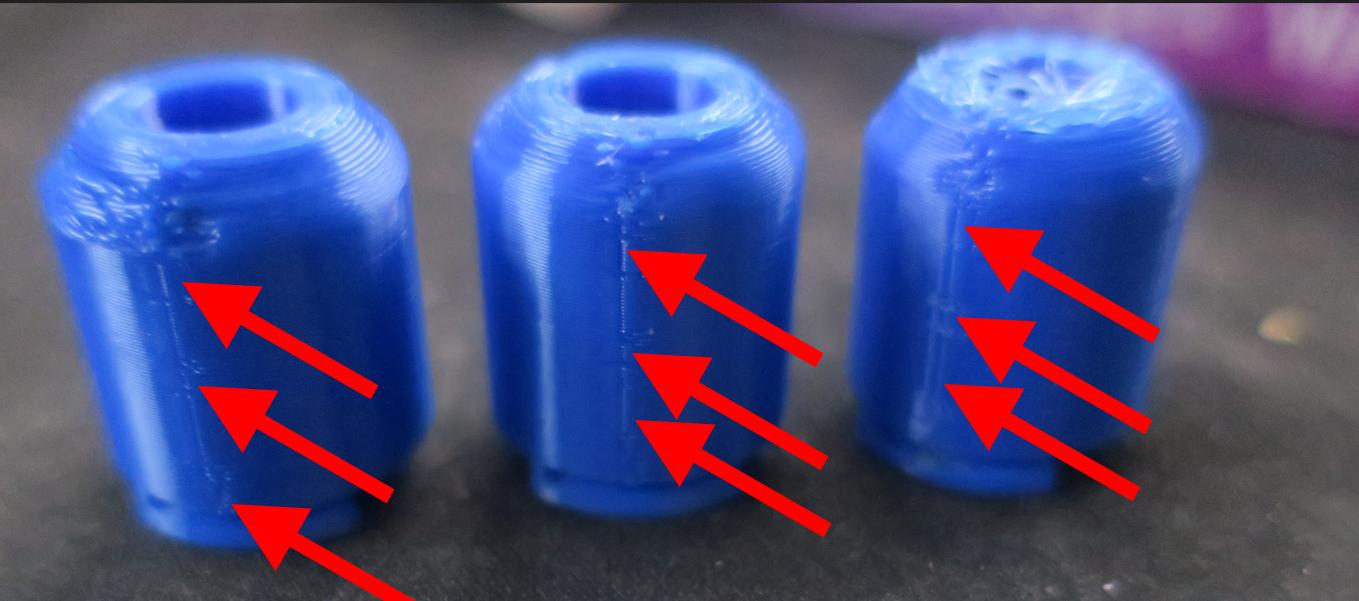
All 3 models show a seam.

How / where do I best hide this seam?

Photo of three printed models with the same printing error

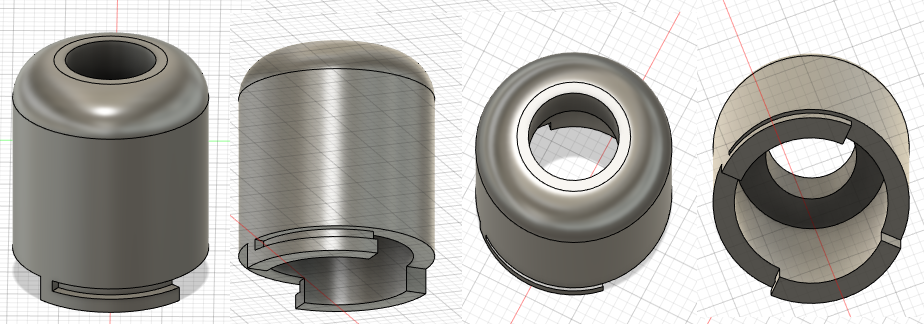
These are some screenshots of the model in Fusion 360:

enter image description here

tmighty
  • 551
  • 1
  • 4
  • 11

5 Answers5

4

There are a bunch of possible causes for the seam. But the main one is retraction.

In Cura the main setting affecting this is under 'Travel'.

In the 'Travel' settings is 'Enable retraction', and 'Retract at layer change'.

Retraction pulls the filament up and it doesn't make such a noticeable seam.

Kilisi
  • 1,450
  • 7
  • 16
3

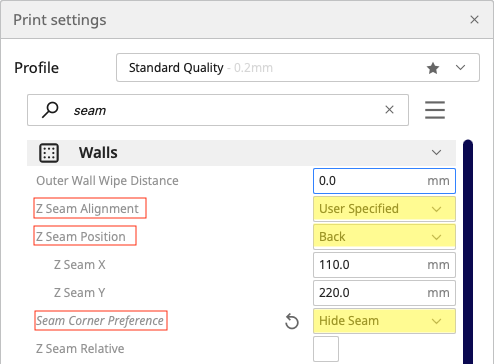
In the Cura settings, search for "seam". This will then display the options to adjust those settings.

Screenshot of Cura settings for 'seam'

Make the following adjustments:

  • Z Seam Alignment to User Specified
  • Z Seam Position to Back
  • Seam Corner Preference to Hide Seam

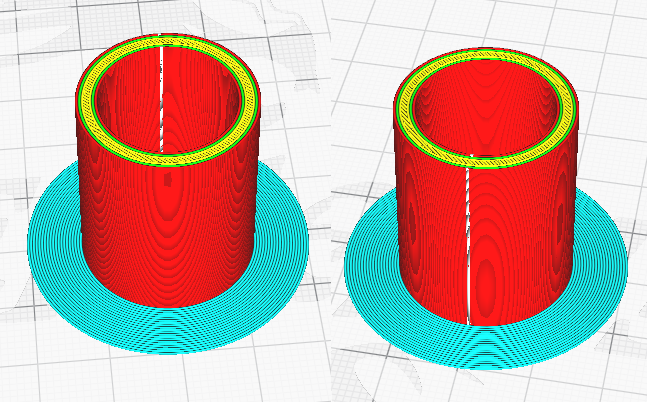
This will position the seam to the best possible position both inside and out.

Screenshot of Cura's Preview for a model with the seam shown in white

agarza
  • 1,714
  • 2
  • 16
  • 33
3

With cylindrical objects you cannot hide the seem (as there aren't sharp corners to hide the seam), unless the parts are oriented always facing a certain side.

There are 3 options, one is to face the part with the view you want to display and put the seam at the back with a slicer option, or two, fiddle with the retraction settings to minimize the seem as much as possible, or three, randomize the seam (but this generally doesn't look very well).

0scar
  • 37,446
  • 12
  • 68
  • 156
2

There are 5 Ways to deal with seam placement

2 ways to place seams deliberately with Z seam alignment: User specified

  • Seam Corner Preference: sharpest corner - this is good to get the seams to one corner, and for boxy prints can make them invisible even. However, this fails for cylinders, as it needs a corner that is discernable sharper than others.
  • Seam Corner Position: Choosing a direction - this fails to remove the seam for cylinders for the same reason, but can help if one side isn't seen usually.

1 way to distribute the seams and blend them in

  • Z seam alignment: random - by distributing the Z-seams randomly, the whole print looks uniform, but you also have the bulges all over the build.

Vase mode is seamless

By activating Vase Mode, the print is automatically printed with a single, continuous shell made from a single, spiraling line. However, such prints can't have overhangs at all and are very thin, making them unusable for most technical applications.

Postprocessing can remove seams

The most common way is to put the seam on a surface where it does not hurt, and then remove it after the print with either a sharp knife, scraper, sandpaper, or needle files. In most technical usages, sanding and smoothing over the layer lines is beneficial anyway, so removing the seam in the same step often isn't too much an extra problem.

Trish
  • 22,722
  • 13
  • 53
  • 105
1

Hiding the seam isn't really possible when the object is rotationally symmetric. The closest you can get is hiding it "statistically" by distributing the seam randomly so it's fractionally-bad everywhere rather than fully-bad in one place. Depending on your needs, this might be good, or it might be awful. If you're hoping to clean up the seam in postprocessing, it's probably awful since there's not just one isolated point that needs fixing with a razor blade or something, but the whole print surface.

One thing you can try, though, is turning on wipe. In Cura this is "Outer Wall Wipe Distance". Setting it to 1-2 mm can go a long way to concealing the seam, especially if it's not bulging from ooze, which yours doesn't seem to be. Combined with random distribution, this might come out looking pretty good for your particular need.

In general, how to deal with seams depends on whether the problem is cosmetic or functional. I'm assuming in your case it's cosmetic, but if it is functional (affecting fit of mechanical parts together, making a printed gear rotationally asymmetric, etc.) then one trick you can do is make an artificial cut into the surface at an arbitrary point and selecting to put the seam on the sharpest corner. This can help ensure the entire print fits inside the intended print volume, and is only missing a small amount of material on a scale smaller than the functional scale of the print.